If you have ever searched for how to SSH into Redis from an iPhone during an on-call incident, you know the standard answer is unsatisfying: open a terminal emulator, SSH into a bastion host, then run redis-cli from there. CacheDeck eliminates that two-hop workflow. It connects to your Redis server through a built-in SSH tunnel directly from iOS: no VPN app, no external SSH client, no second app to configure.
Why SSH tunneling for Redis on iPhone?
Redis servers in production are almost never exposed to the public internet. They sit on a private subnet, behind a firewall, accessible only from within the VPC or via a bastion/jump host. That is good security practice. The problem is that “not exposed to the public internet” also means “not reachable from your iPhone over cellular.”
The conventional solution is an SSH tunnel: you open an SSH connection to a jump host, and that host forwards a local port to the Redis instance on the private network. From your machine’s perspective, Redis appears to be running on localhost.
On a laptop, setting up that tunnel is a one-liner:
ssh -L 6379:redis.internal:6379 user@bastion.example.comOn an iPhone, there is no ssh command in the shell. You need a terminal emulator with SSH support, a jump host configured in it, and then a second app or session to run redis-cli. Under pressure, at 2 AM during an incident, that workflow is friction you do not want.
CacheDeck handles the tunnel internally. You configure it once; after that, connecting to Redis behind a firewall from your iPhone is a single tap.
What you need before you start
Before opening CacheDeck, make sure you have the following:
- CacheDeck installed on an iPhone running iOS 17.0 or later
- SSH jump host (bastion) that can reach your Redis server: hostname/IP and port (usually 22)
- SSH credentials: either a password or a private key file (Ed25519 or RSA)
- Redis server address on the private network: the hostname or IP that is reachable from the jump host, not from your phone
- Redis port (default: 6379) and, if applicable, a username and password (Redis 6+ ACL)
If you are using private key authentication, export the key from your workstation (e.g., ~/.ssh/id_ed25519) and import it into CacheDeck during setup. You do not need to paste it anywhere external: CacheDeck stores it in iOS Keychain.
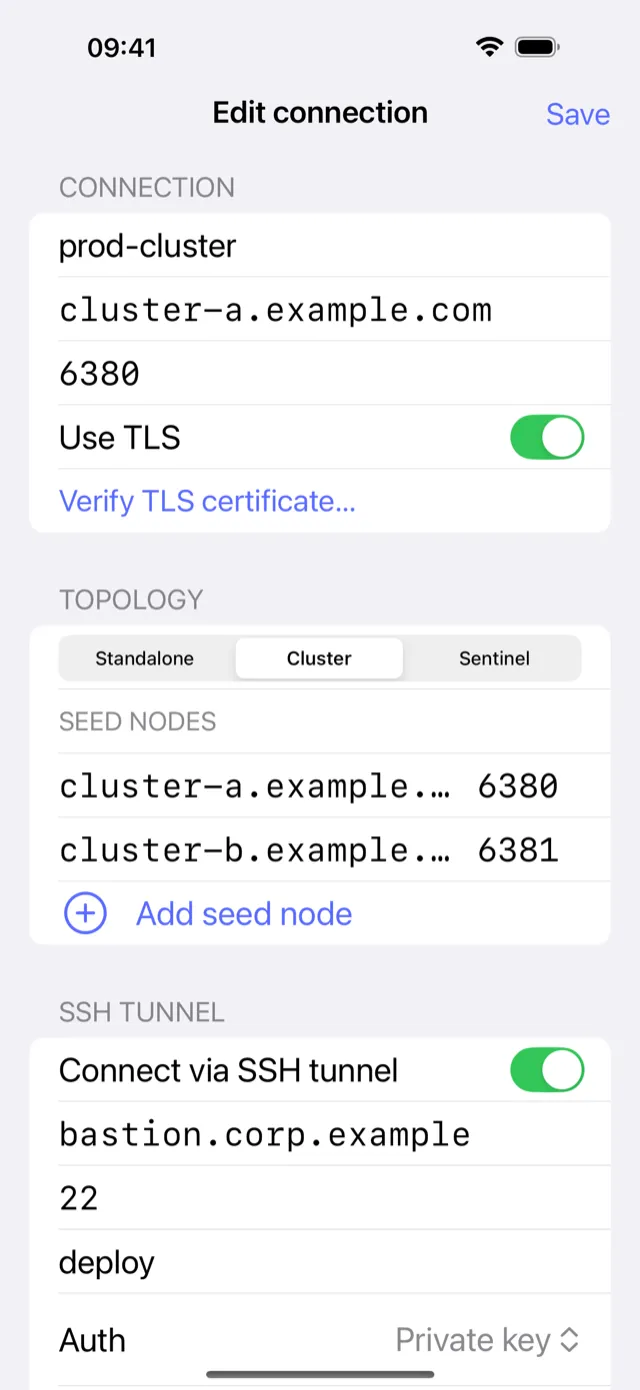
Step-by-step: SSH tunnel setup in CacheDeck
-
Open CacheDeck and tap + in the top-right corner to create a new connection.
-
Enter your Redis connection details:
- Host: the Redis hostname or IP address as seen from the jump host (e.g.,
redis.internalor10.0.2.45) - Port:
6379(or your custom port) - Username / Password: if your Redis 6+ server uses ACL authentication, enter them here
- Host: the Redis hostname or IP address as seen from the jump host (e.g.,
-
Toggle SSH Tunnel on.
-
Enter your SSH jump host details:
- SSH Host: the public hostname or IP of your bastion (e.g.,
bastion.example.com) - SSH Port:
22(or a custom port if your bastion uses one) - SSH Username: your login on the bastion host
- SSH Host: the public hostname or IP of your bastion (e.g.,
-
Choose authentication method:
- Password: type it directly; CacheDeck stores it in iOS Keychain
- Private Key: tap Import Key, select the key file, and optionally enter its passphrase
-
Give the connection a descriptive name. If the name or hostname contains
prod,production, orprd, CacheDeck tags it PROD and enables write protection. -
Tap Connect. CacheDeck opens the SSH session to the bastion, negotiates a local port forward, and connects to Redis through it, all in a single step.
Once connected, you get a visual key browser, a built-in CLI console with autocomplete, and server stats. The SSH tunnel stays alive in the background while the app is in the foreground.
Key authentication: Ed25519 vs RSA on iPhone
When you import a private key into CacheDeck, it is stored in iOS Keychain and, on devices that support it, protected by the Secure Enclave. This means the key material never leaves the device unencrypted and is tied to your device’s biometric or passcode authentication.
Ed25519 is the preferred key type. It produces smaller keys (32-byte private key, 64-byte signature) and is faster to sign with than RSA at equivalent security levels. Most modern jump hosts accept Ed25519 keys: support was added in OpenSSH 6.5 (released January 2014), so all currently supported OpenSSH versions include it. If you are setting up a new key pair for CacheDeck, generate Ed25519:
ssh-keygen -t ed25519 -C "cachedeck-oncall"RSA is the fallback for older bastion hosts or corporate environments that have not yet allowed Ed25519. CacheDeck supports RSA keys (2048-bit and 4096-bit). RSA keys produce larger signatures and take marginally longer to compute on mobile hardware, but the difference is imperceptible on a modern iPhone.
The practical difference between Ed25519 and RSA in CacheDeck is minimal for day-to-day use. CacheDeck also drops a step the manual approach needs: you never copy your private key into a terminal emulator’s local storage or paste it into a third-party text field. You import the key once and leave it alone.
Production safety while on mobile
A native Redis client on a touch screen introduces a risk that does not exist in a terminal: it is easier to tap the wrong button than to mistype a command. CacheDeck addresses this with a production safety classifier.
CacheDeck tags any connection whose name or hostname matches patterns like prod, production, or prd as PROD. On those connections, every write command (SET, DEL, FLUSHDB, EXPIRE, and others) requires an additional confirmation tap before it executes. Read commands (GET, KEYS, SCAN, TTL) proceed without extra friction.
That safeguard earns its keep when you are debugging under pressure and reading data rather than changing it. Tap Execute on a FLUSHDB in the CLI console by mistake and the confirmation still stands between you and the command.
You can also tag a connection as PROD manually, regardless of the name, which is useful for staging environments that carry production-level data.
SSH access to Redis from an iPhone used to mean juggling two apps and a multi-step tunnel configuration on every incident. CacheDeck (the native iOS Redis client) compresses that into a single configured connection that is always ready. Free to download with a one-time $4.99 Pro unlock, no subscription, supports Redis 6+, Valkey, KeyDB, TLS 1.3, mTLS, and Ed25519/RSA key authentication stored in iOS Keychain.
Related: Connecting to Redis over TLS from iPhone · Redis Client for iPhone: full feature overview