Most Redis deployments that are reachable from the internet require TLS. Whether your server runs Redis 6+ TLS mode, Upstash, AWS ElastiCache, or Azure Cache for Redis, the connection must be encrypted. CacheDeck makes connecting to Redis over TLS from an iPhone straightforward, with full TLS 1.3 and mTLS support baked in, and certificates stored in the iOS Keychain.
Four setups cover almost everything you will hit: plain TLS, mutual TLS, a custom CA for self-signed certificates, and the major cloud providers.
TLS vs mTLS for Redis: quick overview
TLS (Transport Layer Security, standardized as TLS 1.3 in RFC 8446) encrypts the data in transit between client and server. The client verifies the server’s identity using a certificate signed by a trusted CA. Redis 6+ introduced native TLS support; all major managed Redis providers (Upstash, ElastiCache, Azure Cache) enforce TLS-only connections.
mTLS (mutual TLS) goes further: the server also requires the client to present a certificate. Both sides authenticate each other before either one sends data. mTLS is common in high-security environments and in managed services that offer certificate-based authentication rather than (or in addition to) password authentication.
The practical difference for mobile access:
| TLS | mTLS | |
|---|---|---|
| Server authenticated | Yes | Yes |
| Client authenticated | No | Yes (client cert required) |
| Redis support | Redis 6+ | Redis 6+ with tls-auth-clients yes |
| Cloud providers | All major providers | Varies; some offer cert download |
CacheDeck supports both. For most managed services, plain TLS is sufficient. For private clusters or high-compliance environments, mTLS is available.
Setting up TLS in CacheDeck
For the common case (connecting to a Redis server that uses a certificate from a public CA, like Let’s Encrypt, DigiCert, or a managed-service provider), TLS requires a single toggle.
- Open CacheDeck and tap + to create a new connection (or tap an existing connection to edit it).
- Enter your Redis host and port. TLS-enabled Redis servers typically use port 6380 on managed services or 6379 with TLS enabled on self-hosted deployments.
- In the Security section, toggle Use TLS on.
- Tap Connect. CacheDeck negotiates TLS 1.3 and verifies the server certificate against the iOS system trust store.
If your server uses a self-signed certificate or a private CA, the system trust store will not recognize it and the connection will fail. In that case, add your CA certificate:
- Export your CA certificate as a
.pemor.crtfile. - Transfer it to your iPhone (AirDrop, Files app, or email).
- In CacheDeck, tap Add CA Certificate in the TLS section and select the file.
- CacheDeck stores it in the iOS Keychain and uses it to validate the server’s certificate on every connection.
Mutual TLS (mTLS): adding a client certificate
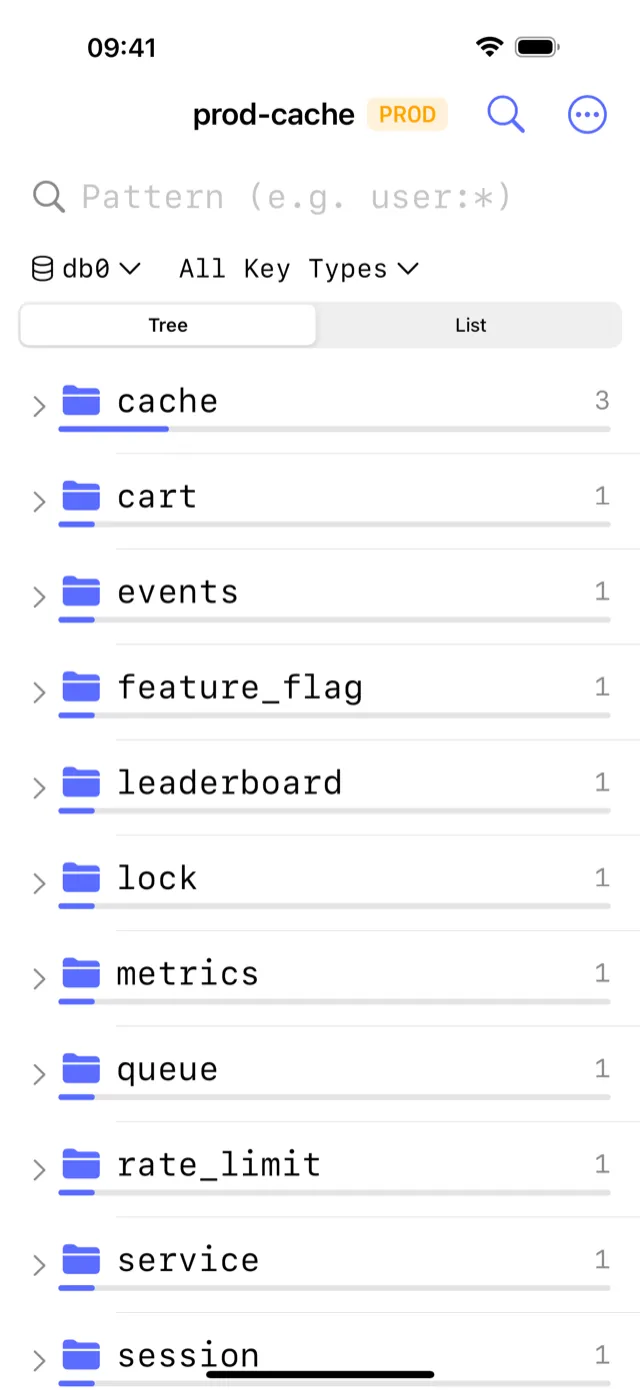
If your Redis server requires the client to authenticate with a certificate (tls-auth-clients yes in redis.conf, or a managed service that issues client certificates), you need to upload a client certificate and its corresponding private key.
Step 1: Obtain your client certificate and private key. Your server administrator, or the managed service dashboard, will provide:
client.crt: the client certificate (PEM format)client.key: the private key (PEM format)
Some services bundle these as a .p12 / PKCS#12 file. CacheDeck accepts both formats.
Step 2: Transfer the files to your iPhone. Use AirDrop, the Files app with iCloud Drive, or a secure file-transfer method you trust. Never send private keys over unencrypted email.
Step 3: Add the client certificate in CacheDeck.
- Open the connection editor and enable Use TLS if not already on.
- Tap Add Client Certificate in the TLS section.
- Select your
.crt(or.p12) file. If using separate files, also tap Add Private Key and selectclient.key. - CacheDeck imports both into the iOS Keychain immediately. The original files can be deleted from Files.
Step 4: Connect. CacheDeck presents the client certificate during the TLS handshake. The server validates it against its configured CA and, if accepted, completes the connection.
Connecting to Upstash, ElastiCache, or Azure Cache over TLS
Upstash
Upstash Redis is TLS-only; unencrypted connections are rejected. The certificate is issued by a public CA, so no custom CA upload is needed.
- Copy your Upstash endpoint (e.g.,
us1-xxxx.upstash.io) and port (typically6380). - Enter them in CacheDeck, enable Use TLS, and enter your Upstash password in the Auth field.
- Connect. No additional certificate configuration required.
AWS ElastiCache (TLS enabled)
ElastiCache TLS uses an Amazon-issued certificate. The iOS trust store includes Amazon Root CA, so no custom CA upload is needed in most cases.
- Use the ElastiCache Primary Endpoint as the host and port
6380(TLS port). - Enable Use TLS in CacheDeck.
- If your cluster uses in-transit encryption with AUTH token, enter the token in the Auth field.
- Connect. If you see a certificate error, download the Amazon ElastiCache TLS CA bundle and upload it as a custom CA in CacheDeck.
Azure Cache for Redis
Azure Cache for Redis enforces TLS on port 6380 by default.
- Copy the Host name (e.g.,
myredis.redis.cache.windows.net) and use port6380. - Enable Use TLS in CacheDeck.
- Enter the Primary access key as the password in the Auth field.
- Connect. Azure’s certificate is issued by DigiCert, trusted by iOS out of the box.
How CacheDeck stores your certificates
When you add a CA certificate, client certificate, or private key in CacheDeck, each item is stored in the iOS Keychain, the same encrypted storage that holds Face ID data and saved passwords. Apple’s iOS Security Guide describes the Keychain as hardware-encrypted and tied to the device’s Secure Enclave.
This means:
- Certificates and keys never leave your device to any cloud sync, backup service, or analytics endpoint.
- CacheDeck has no cloud account and no backend. No server receives your credentials; the app’s optional anonymous diagnostics pass an allow-list scrubber that strips credentials, hostnames, and key data.
- The Keychain entry is scoped to CacheDeck and is not accessible to other apps.
- Deleting a connection in CacheDeck removes its stored secrets from the Keychain.
TLS in CacheDeck can also be combined with an SSH tunnel; these are independent features. A common pattern for private clusters is to tunnel over SSH to a bastion host and then use TLS for the Redis connection itself, giving you two separate layers of encryption.
CacheDeck requires iOS 17 or later. It is free to download, with a one-time $4.99 Pro unlock and no subscription.
CacheDeck is the native iOS Redis client built for DevOps engineers and SREs: TLS 1.3, mTLS, SSH tunnels, and iOS Keychain certificate storage in a free app with a one-time $4.99 Pro unlock.
Related: How to SSH into Redis from iPhone · Azure Cache for Redis on iPhone · AWS ElastiCache on iPhone · Upstash on iPhone · Redis client for iPhone: full feature overview