You reach Redis from a terminal on a laptop. That breaks down the moment you need to check a key or flush a cache away from your desk.
CacheDeck brings a full Redis client to iPhone, with SSH tunnels, TLS support, and a safety classifier that prevents accidental writes on production.
Setting up your first connection
- Open CacheDeck and tap + to add a connection.
- Enter your Redis host and port (default: 6379).
- If your server is behind a firewall, enable SSH Tunnel and enter your jump host details.
- Tap Connect.
SSH tunnel in detail
CacheDeck opens a local TCP tunnel via SSH directly from your iPhone. You can authenticate with a password or an Ed25519/RSA private key, no VPN app required.
Production safety
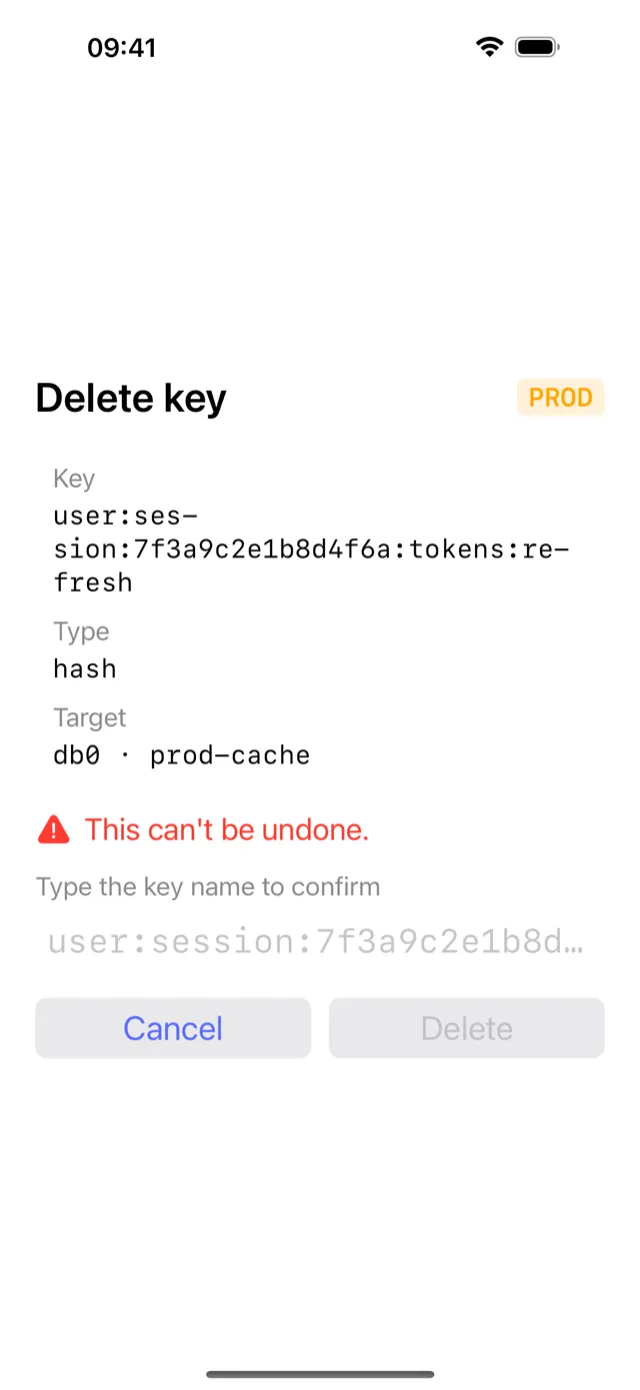
CacheDeck scans connection names and hostnames for patterns like prod, production, and prd. It tags those connections PROD and requires an extra confirmation tap before any write command executes.
An accidental tap or swipe is far less likely to trigger a destructive write on a PROD-tagged connection.
Troubleshooting common connection issues
Wrong port: Redis defaults to port 6379. Redis with TLS typically uses port 6380. Upstash uses port 6379 with TLS mandatory. If your connection times out, double-check the port matches your server’s configuration.
AUTH password: If your Redis server requires authentication, enter the password in the Auth password field in CacheDeck’s connection settings. For Redis 6+ with ACL, use the username and password fields together.
SSH key format: CacheDeck accepts OpenSSH-format private keys (beginning with -----BEGIN OPENSSH PRIVATE KEY-----) and PEM-format RSA keys. If you generated your key with older ssh-keygen defaults, convert it with ssh-keygen -p -m OpenSSH -f ~/.ssh/id_rsa.
Slow connection on mobile networks: Redis commands over an SSH tunnel on a cellular network add ~50–200 ms per round-trip compared to a local connection. This is normal. Use SCAN with a count limit rather than KEYS * on large keyspaces to avoid blocking the connection.
TLS certificate errors: If your Redis server uses a self-signed certificate, upload the CA certificate in CacheDeck’s TLS settings. For mutual TLS, you also need the client certificate and private key, both stored in the iOS Keychain after import.
CacheDeck is the native iOS Redis client used in this guide: free to download with a one-time $4.99 Pro unlock, and it has SSH tunnels, TLS/mTLS, and write protection built in.
Related: How to SSH into Redis from iPhone · Redis client for iPhone: full feature overview · CacheDeck vs alternatives