If your team migrated from Redis to Valkey in 2024 or 2025, your existing tooling still works, mobile clients included. CacheDeck connects to Valkey the same way it connects to Redis, because both servers speak the same wire protocol.
Is CacheDeck compatible with Valkey?
Yes. CacheDeck communicates with servers using the Redis Serialization Protocol (RESP2 and RESP3), which is the same protocol Valkey uses. Valkey is a drop-in protocol-level replacement for Redis, so any client that speaks RESP connects to Valkey without modification.
When you point CacheDeck at a Valkey server, it sends the same HELLO, PING, and command frames it sends to any other RESP server. Valkey responds identically. There are no Valkey-specific handshakes, authentication extensions, or connection flags to configure.
CacheDeck also supports KeyDB, another Redis-compatible fork, for the same reason.
What CacheDeck does not do: CacheDeck is not affiliated with the Valkey project or Redis Ltd. It is a general-purpose RESP client that works with any server that implements the protocol.
Connecting CacheDeck to a Valkey server
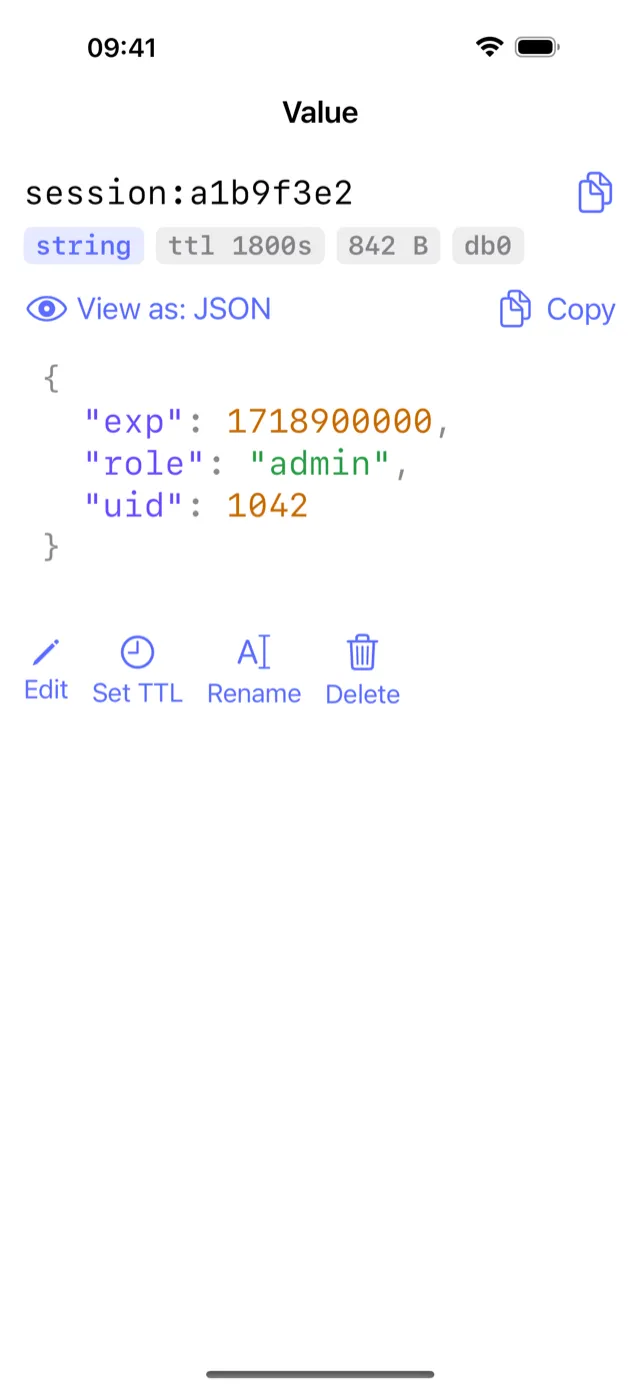
The setup steps are identical to connecting to a Redis server:
- Open CacheDeck and tap + to create a new connection.
- Enter your Valkey host and port. The default Valkey port is 6379, the same as Redis.
- If your Valkey instance requires a password (set via
requirepassinvalkey.conf), enter it in the Auth field. - If your server is on a private network, enable SSH Tunnel (see the next section).
- If your server uses TLS, toggle TLS and optionally upload your client certificate for mTLS.
- Tap Connect.
CacheDeck will negotiate the protocol version with Valkey during the HELLO handshake and use RESP3 if available. You do not need to set this manually.
Once connected, the key browser, CLI console, Pub/Sub monitor, and server stats all work the same way they do with Redis. Valkey implements the same command set for the data types CacheDeck supports: strings, hashes, lists, sets, sorted sets, and streams.
Valkey vs Redis: does it matter for a mobile client?
For a RESP client like CacheDeck, the Valkey vs Redis distinction is mostly invisible at the protocol layer. Valkey was forked from Redis 7.2 in 2024 after Redis Ltd. changed the Redis license to the Server Side Public License (SSPL) and the Business Source License (BUSL). The Linux Foundation accepted Valkey as a project shortly after, and the Valkey team has continued developing it as an open-source alternative.
The fork preserved full protocol compatibility by design. The Valkey team committed to RESP2 and RESP3 compatibility so that existing clients (libraries, CLIs, and apps) would continue to work without changes.
In practice this means:
- Commands work the same.
GET,SET,HGETALL,XREAD, and every other command CacheDeck supports behaves identically on Valkey. - Authentication is the same.
ACLusers,requirepass, andAUTHcommands are all supported. - Port and config defaults are the same. Valkey uses 6379 by default and ships a
valkey.confthat mirrorsredis.confin structure. - Data types are the same. Strings, hashes, lists, sets, sorted sets, and streams all behave identically: no key-type migration is needed when switching from Redis to Valkey.
The differences between Valkey and Redis (new commands added in Valkey 8, internal memory optimizations, licensing) are invisible from a mobile client perspective.
SSH tunnel to Valkey on iPhone
Like Redis, Valkey almost always runs on a private network, out of reach of the public internet. On-call engineers get to it through a VPN, a bastion host, or an SSH jump server.
CacheDeck has a built-in SSH tunnel that handles this without a separate VPN app:
- In the connection editor, enable SSH Tunnel.
- Enter your Jump Host hostname or IP and port (usually 22).
- Enter your SSH username.
- Choose your authentication method: password or private key. CacheDeck supports Ed25519 and RSA keys. You can paste the private key directly into the app; it is stored in the iOS Keychain, not in plaintext.
- Save and connect. CacheDeck opens the SSH session from your iPhone, forwards the Valkey port locally, and connects through the tunnel, all in a single tap.
The workflow is the same whether the target server runs Redis, Valkey, or KeyDB. The tunnel does not care what sits on the other end; it forwards TCP to the port you specify.
If your organization terminates TLS at the Valkey server rather than at a load balancer, you can combine SSH tunneling with TLS in the same connection. Enable both SSH Tunnel and TLS in the connection editor.
A note on production safety
Valkey deployments that inherit Redis production workloads carry the same stakes: a mistaken FLUSHDB on a production keyspace is as destructive as ever. CacheDeck’s production safety classifier applies to Valkey connections the same way it applies to Redis connections. If your connection name or hostname contains patterns like prod, production, or prd, CacheDeck tags it PROD and requires an extra confirmation tap before any write command executes.
CacheDeck is a native iOS client for Redis-compatible servers (Redis, Valkey, and KeyDB) with SSH tunnels, TLS/mTLS, and write protection built in. Free to download, one-time $4.99 Pro unlock, iOS 17+.
Related: How to SSH into Redis from iPhone · Connecting to Redis over TLS from iPhone · Valkey client iOS: feature overview
Valkey is a project of the Linux Foundation. Redis is a trademark of Redis Ltd. CacheDeck is not affiliated with either organization.