An alert fires at 2 AM. You need to check whether a specific Redis key exists, what its TTL is, and whether its value looks correct, but you are away from your laptop. This is exactly the workflow CacheDeck is built for: native Redis key inspection from iPhone, with an SSH tunnel and production safety guard built in.
Inspecting Redis keys on iPhone takes five steps, from first connection to value verification.
What “inspecting a Redis key” means in practice
Inspecting a Redis key means checking some combination of:
- Does the key exist? Did the cache warm correctly, or is it missing?
- What is the TTL? Is it about to expire and cause a cache miss storm?
- What is the value? Does it look correct, or is it malformed/stale data?
- What type is it? String, hash, list, sorted set, stream?
- How large is it? A large value in a key can indicate a bug or unexpected serialization
On a laptop, all of this is a few redis-cli commands. On an iPhone without a purpose-built client, it requires a terminal emulator, an SSH session to a bastion, and redis-cli, plus you have to remember the exact key name or use SCAN to find it.
CacheDeck gives you a visual key browser, pattern search, and a detail view that shows type, TTL, size, and value, without typing a single command.
Step 1: Connect to your Redis server
Open CacheDeck and tap your saved connection. If your Redis server is inside a private network (VPC, private subnet, behind a firewall), the SSH tunnel configuration handles the connection automatically, no separate SSH app needed.
If this is your first time connecting, tap + to create a new connection. Enter the host and port, toggle SSH Tunnel if your server is behind a bastion, and tap Connect.
Step 2: Browse the key namespace
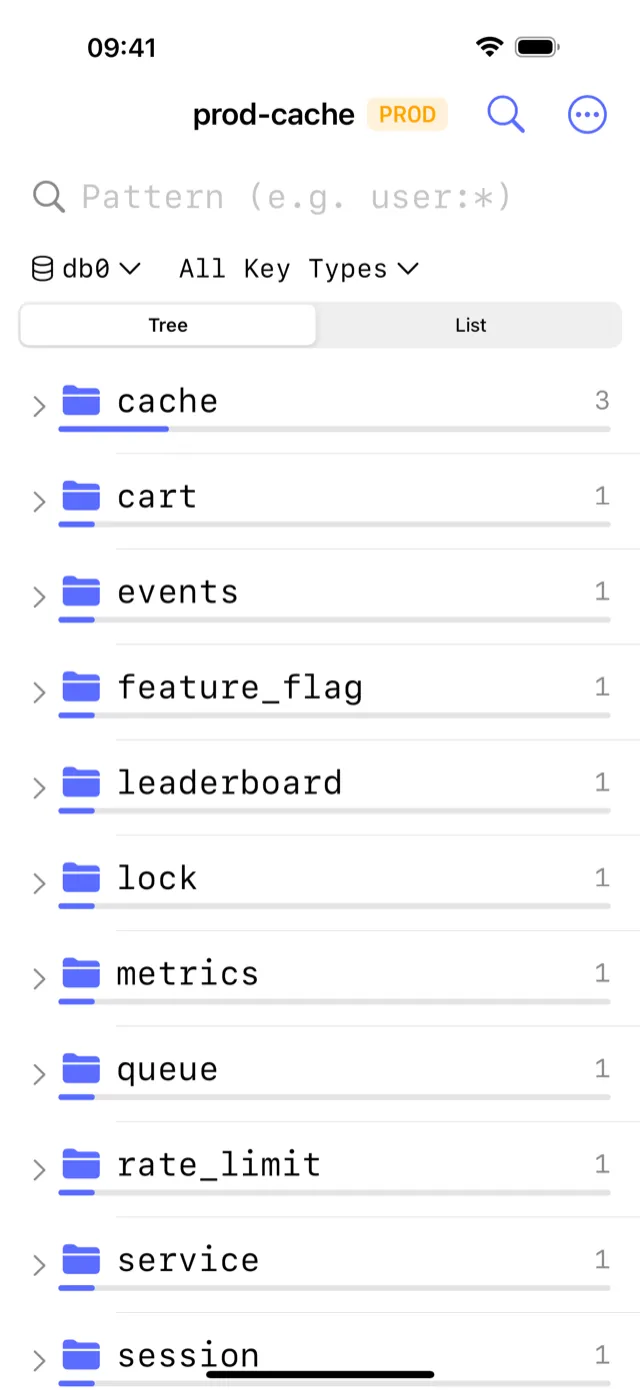
After connecting, the key browser shows your keys organized by namespace prefix. Most Redis keyspaces use colon-delimited prefixes like user:123, session:abc, cache:products:456. CacheDeck groups keys by their prefix automatically, so you can tap user: to see all user keys without listing everything.
For a large keyspace (millions of keys), CacheDeck uses server-side SCAN with cursor pagination: it never runs KEYS * on a production server. The difference is measurable: on a 200,000-key instance one KEYS * held the server for 39 ms, while the same walk through SCAN ran as 200 calls of 0.36 ms each. That measurement, and why neither of them shows up in an empty slowlog, is in The Slowlog Is Empty and the Cache Still Feels Slow.
Step 3: Search by pattern
To find a specific key or group of keys, tap the search icon and enter a glob pattern:
user:*: all keys starting withuser:session:*:token: all session token keyscache:products:*: all product cache entries*:stale: any key ending with:stale
CacheDeck sends the pattern to Redis as a SCAN with a MATCH argument. The search happens server-side and does not load all keys into memory on your phone.
Step 4: Inspect key details
Tap any key to open the detail view. CacheDeck shows:
| Field | What it tells you |
|---|---|
| Type | String / Hash / List / Set / Sorted Set / Stream |
| TTL | Seconds until expiry; -1 means no expiry; -2 means the key does not exist |
| Size | Number of characters (strings) or number of fields (hashes, lists) |
| Value | Full value, scrollable for long values; formatted for hashes and lists |
For hashes, CacheDeck shows all fields and values in a scrollable list. For sorted sets, it shows members and scores. For streams, it shows the last N entries.
Step 5: Edit a value (with production safety)
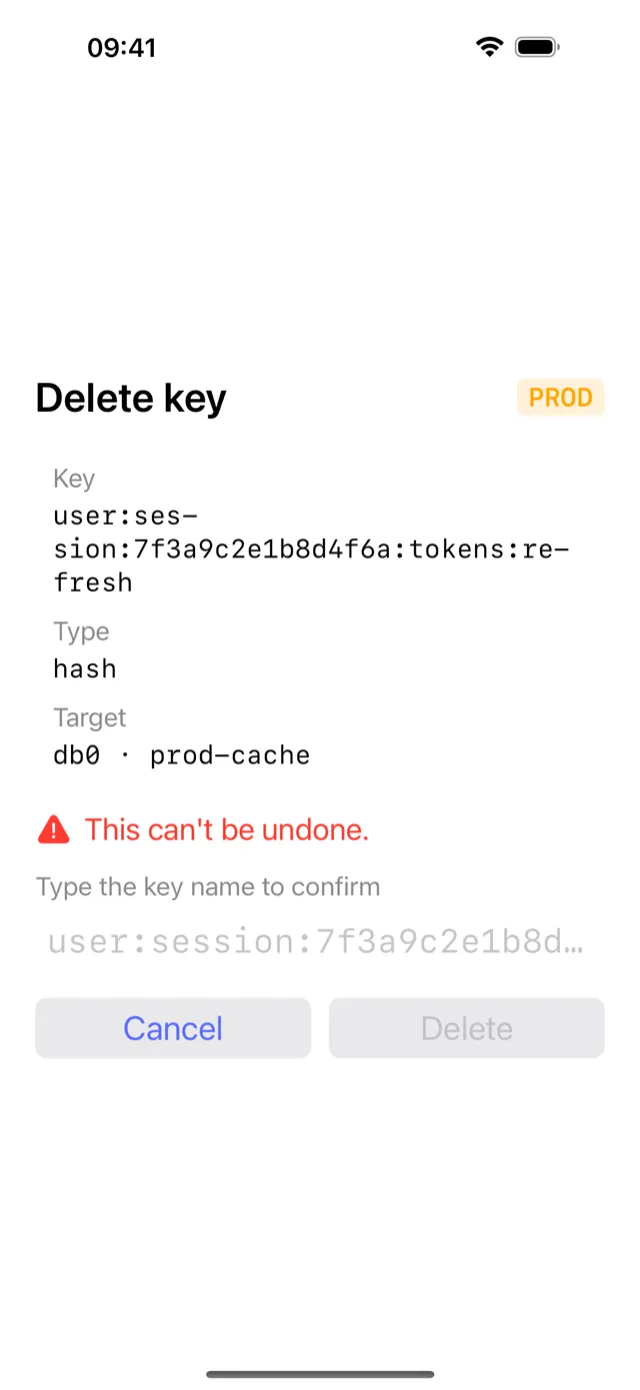
If you need to fix a value during an incident, tap Edit on any key. CacheDeck opens an inline editor.
If the connection is tagged PROD (which happens automatically when the connection name or hostname contains prod, production, or prd), CacheDeck requires an extra confirmation tap before writing. An accidental tap on Save cannot overwrite production data on its own.
For destructive operations like DEL or EXPIRE, the same confirmation applies on PROD connections.
What you can check without CacheDeck (and why it’s slower)
For context, the alternative is connecting over SSH with a terminal emulator and running commands manually:
# Check if a key exists and its TTL
redis-cli TTL "session:abc123"

# Check the value
redis-cli GET "session:abc123"

# Search for keys
redis-cli SCAN 0 MATCH "user:*" COUNT 100
This works, but on an iPhone it requires: opening a terminal emulator, establishing an SSH connection to a bastion, waiting for the session, then typing each command from a software keyboard. Under incident pressure, the multi-step workflow adds friction that CacheDeck eliminates.
Common on-call inspection patterns
Is the key missing after a deploy? Search for the key by pattern. If it shows no results, the cache did not warm: check your warm-up logic or trigger a manual cache fill.
Is the TTL about to cause a mass expiry? Filter for keys with a specific prefix and sort by TTL. A cluster of keys all expiring within seconds of each other (a TTL thundering herd) is visible immediately in the detail view.
Is a hash key missing expected fields? Open the key detail view and scroll through hash fields. Missing fields usually mean a serialization bug in the application layer.
Did a write succeed during a previous incident?
GET the key and check its value matches what was written. If the value looks correct and the TTL is reasonable, the fix held.
CacheDeck is the native iOS Redis client for on-call engineers: key browser, pattern search, SSH tunnel, and write protection in a free app with a one-time $4.99 Pro unlock.
Related: How to SSH into Redis from iPhone · Redis Pub/Sub monitor on iOS · CacheDeck vs alternatives · Redis client for iPhone: feature overview