Redis Cluster is the standard horizontal scaling mode for Redis deployments that outgrow a single instance, but it introduces complexity that most mobile clients are not built to handle. Keys are distributed across multiple shards using a hash slot system, commands must be routed to the correct node, and the cluster topology can change when a failover occurs. Connecting from an iPhone adds another constraint: you need a client that handles all of that internally, without requiring you to manage it manually.
CacheDeck is built for exactly this scenario. You enter any one node endpoint, and the app handles everything else from your iPhone: cluster discovery, slot routing, redirect handling, and topology monitoring.
What Redis Cluster does
A Redis Cluster partitions the keyspace into 16,384 hash slots. Each slot is assigned to a specific primary (master) node; primary nodes can have one or more replicas for redundancy. When you write or read a key, the cluster computes CRC16(key) % 16,384 to determine which slot the key belongs to, then routes the command to the node that owns that slot.
If you send a command to the wrong node, the node replies with a MOVED redirect pointing to the correct one. If a slot is being migrated during a resharding operation, the node may reply with an ASK redirect instead. A well-implemented cluster client handles both transparently, so you do not have to think about them.
CacheDeck handles MOVED and ASK redirects transparently. From your perspective in the key browser or CLI console, you are working with a single Redis data store.
Connecting to Redis Cluster from iPhone
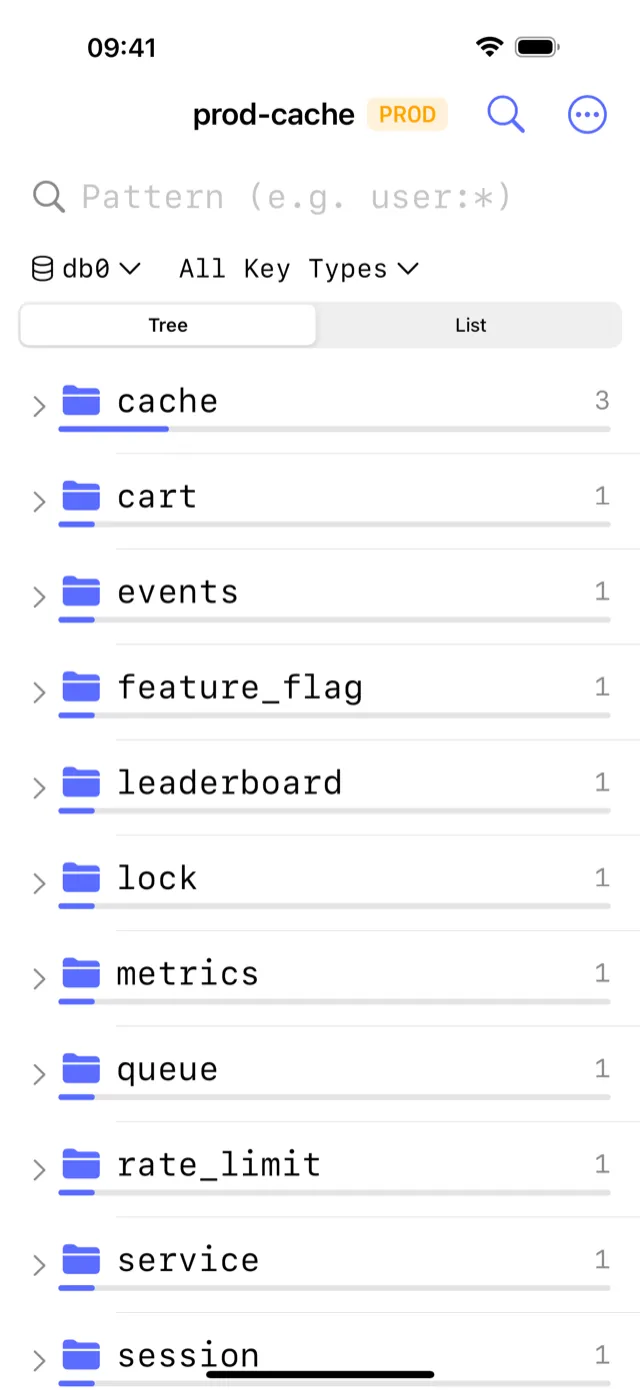
The connection setup in CacheDeck for a cluster is identical to a standalone connection. You do not need to list every node manually.
- Open CacheDeck and tap + to create a new connection.
- Enter the host and port of any single node in the cluster. Any node works; it does not need to be the primary for a specific slot range.
- Enter your Redis password or ACL credentials if your cluster uses authentication.
- Tap Connect.
When CacheDeck connects, it issues a CLUSTER SHARDS command (with CLUSTER SLOTS as a fallback for older cluster versions) to discover the full topology: every node, its role, its slot ranges, and its replicas. Discovery runs once at connection time, and CacheDeck refreshes it when the topology changes, for example after a failover.
After discovery, CacheDeck builds an internal routing table. Every command you issue (whether from the key browser, the CLI console, or any other view) is routed to the node that owns the relevant slot. You never see MOVED or ASK errors; the app handles them and retries on the correct node.
Cluster Topology view
Once connected, you can inspect the cluster’s live topology by tapping the topology icon. The ClusterTopologyView shows:
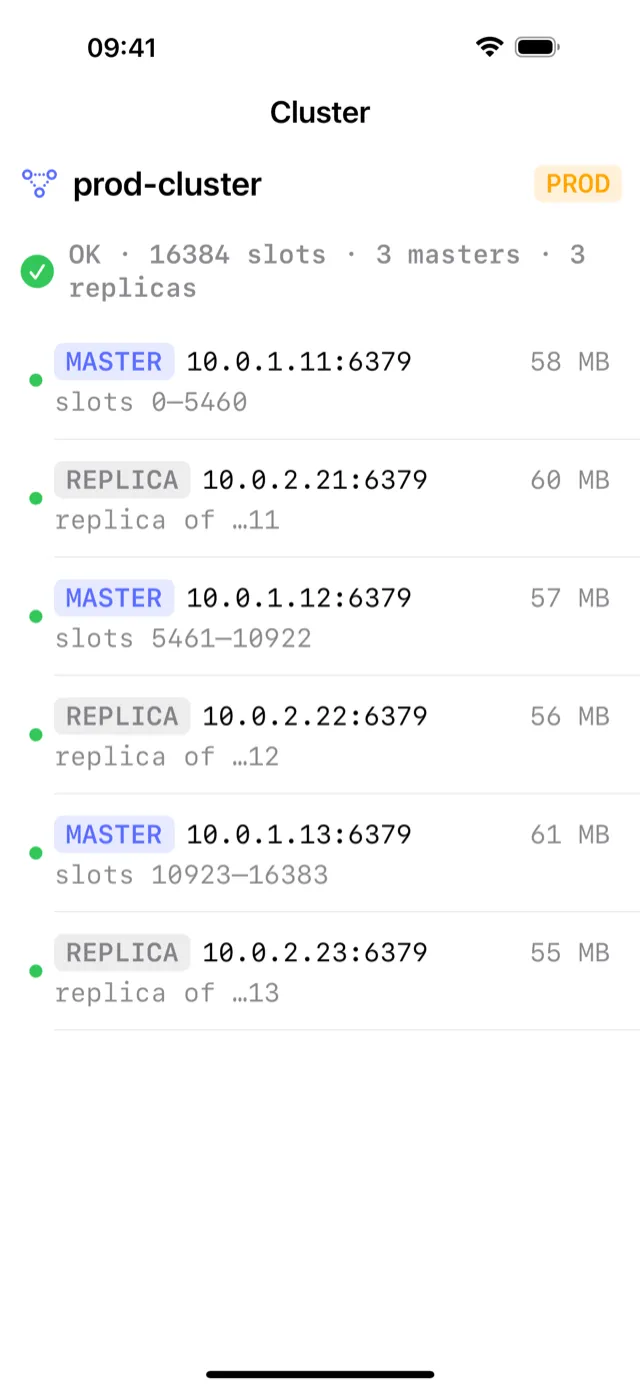
Summary banner at the top of the screen: a single line that tells you the cluster’s overall health at a glance.
OK · 16384 slots · 3 masters · 3 replicas: all slots assigned, all nodes healthydegraded: 1 master down · slots 5461–10922 unavailable: partial outage with affected slot rangeFailover… re-discovering topology(with a spinner): a failover is in progress and the topology is being refreshed
Node list grouped by shard. Each shard shows the primary node first, followed by its replicas. For every node you can see:
- Role badge:
MASTERorREPLICA - host:port for the node
- Status dot: green (ok), red (fail), or amber (promoting: a replica mid-promotion)
- Slot range assigned to that shard
This gives you an immediate picture of cluster health without leaving the app or running CLUSTER NODES manually.
Node-level statistics are not live yet
The node detail sheet, which you open by tapping any individual node, shows per-node memory statistics and key counts as placeholder zeros. The topology summary, node roles, slot ranges, and aggregate health status all read live values. Per-node memory and key counts are on the roadmap.
SSH tunnels and TLS with Redis Cluster
CacheDeck’s SSH tunnel and TLS/mTLS support work with clustered deployments the same way they work with standalone servers. When you enable SSH Tunnel or TLS in the connection editor, those settings apply to every node in the cluster: CacheDeck uses the same tunnel and the same TLS configuration when it connects to each node during topology discovery and command routing.
A common pattern for private Redis Cluster deployments:
- SSH tunnel to a bastion host that can reach the cluster’s private subnet, then let CacheDeck discover and route to all nodes through the tunnel
- TLS enabled if the cluster uses Redis 6+ TLS mode (each inter-node and client-to-node connection is encrypted)
- Both combined for clusters that sit behind a firewall and require encrypted connections
If your cluster is an AWS ElastiCache cluster with cluster mode enabled, or a similar managed service, TLS is typically enforced automatically. Enable Use TLS in CacheDeck’s connection editor and enter the primary endpoint; the rest of the discovery and routing works the same way.
See How to SSH into Redis from iPhone and Connecting to Redis over TLS from iPhone for full setup guides for each feature.
Step-by-step summary
- Open CacheDeck and tap + to create a new connection.
- Enter any one node endpoint: host and port. CacheDeck discovers the full cluster automatically using
CLUSTER SHARDS. - Add credentials and optional security settings: password/ACL, SSH tunnel if the cluster is on a private network, TLS if connections are encrypted.
- Tap Connect: CacheDeck discovers all nodes, builds the routing table, and opens the key browser. The full keyspace is immediately browsable.
- Open ClusterTopologyView to inspect node health, roles, slot ranges, and the aggregate cluster status banner.
CacheDeck is a native iOS client for Redis-compatible servers, built for DevOps engineers and SREs. It runs on iPhone (iOS 17+), is free to download, and has a one-time $4.99 Pro unlock with no subscription. Redis is a trademark of Redis Ltd.; use of the name here is nominative.
Related: Redis client for iPhone: full feature overview · Redis client comparison for iPhone · How to SSH into Redis from iPhone · AWS ElastiCache iOS client